2026-09-21 • 6 min read • Connect
Create a Claude Custom Connector
What a Claude custom connector is, why you would add one, how to create the MCP server in MCP Studio in about a minute, and where to paste the server URL.
Claude is Anthropic's AI assistant. You type a question or a task, and it writes a reply. A custom connector is how you give that reply a live link to your own material, so Claude can write from your handbook, brand kit, or docs instead of from general knowledge alone.
What a custom connector is
A custom connector is a named connection between Claude and a remote MCP server. MCP is an open standard that lets Claude ask an outside server for information during a chat. You add the connection once. After that, you turn it on for any conversation.
You do not paste pages into the chat each time. Claude asks the server, reads the passages that come back, and writes from those.
Anthropic's guide to custom connectors covers who can use them. They work in Claude on the web, Claude Desktop, and Cowork, on Free, Pro, Max, Team, and Enterprise plans. A Free plan can hold one custom connector.
Why add one
The benefit is that Claude can use the same material you already trust, on every question that needs it.
A welcome email that sounds like your company. Ask Claude to write one with no connector attached and you get a generic template: "Hi First Name, welcome to Company Name." Ask again with your brand kit connected and the reply uses your wording, your colors, and your mark. We recorded that side by side in a short walkthrough.
A policy answer from the page that holds it. "What do we refund if a customer cancels eight days out?" is not a general-knowledge question. The answer is a table in a handbook. The connector is how Claude finds that table.
The same sources in every chat. You add the connector once. In a new conversation you open Connectors and flip the toggle. You do not re-upload the files.
You choose what is connected. A documentation site, a GitHub repository, a PDF handbook, a spreadsheet, or a brand image. Claude only sees what you put on that server.
Make the server in about a minute
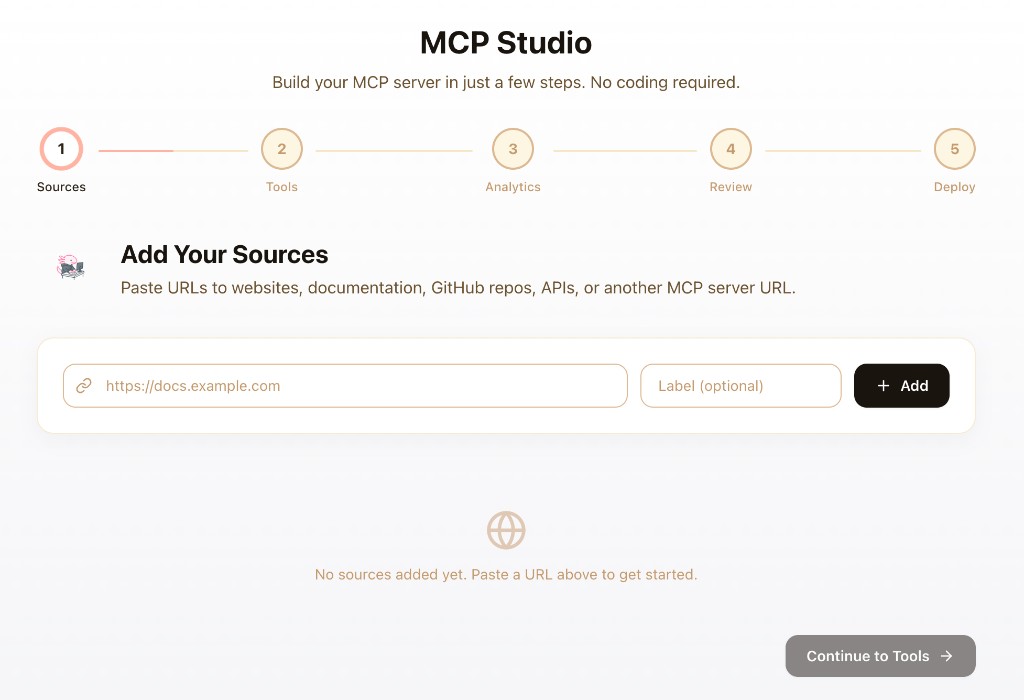
A custom connector needs an MCP server URL to paste. Building that server yourself is a programming job. Context MCP Studio is the no-code builder on Appa Tools. Open the app, add a source, pick the tools Claude can call, and deploy. The wizard itself takes about a minute. You do not write any code.
Work through the wizard in order.
- Name it for the job.
Welcome emailsorRefund handbooktells you what the connector is for later.My serverdoes not. - Add one source tied to that job. Paste a documentation URL, a website, a GitHub repository, or an existing MCP endpoint, or upload a PDF, a spreadsheet, or a brand image. Add a second source only when it serves the same task from another angle, such as a brand kit beside the handbook that names the refund rule.
- Choose the tools Claude can call. Pick at least three. Search and question answering cover most chats. Match the rest to the questions you actually ask. The tool selection guide covers what each one does.
- Deploy. The endpoint exists straight away and indexing starts in the background. Give a large site time to finish before you judge the answers.
Copy the server URL from the setup page. It looks like this:
https://appatools.com/mcp-studio/api/mcp/your-server-name
MCP Studio hosts the server for you, so it is reachable on the public internet. Claude reaches custom connectors from Anthropic's cloud, not from your laptop. A server that only runs on your machine will not connect this way.
If the material is confidential, make the server private and add the access token in Claude's connector settings. Treat that token like a password. The private servers guide covers how it works.
Connect it in Claude
These steps match Claude on the web and Claude Desktop.
- Open Claude.
- Click the + button, then Connectors.
- Click Add connector, then Add custom connector.
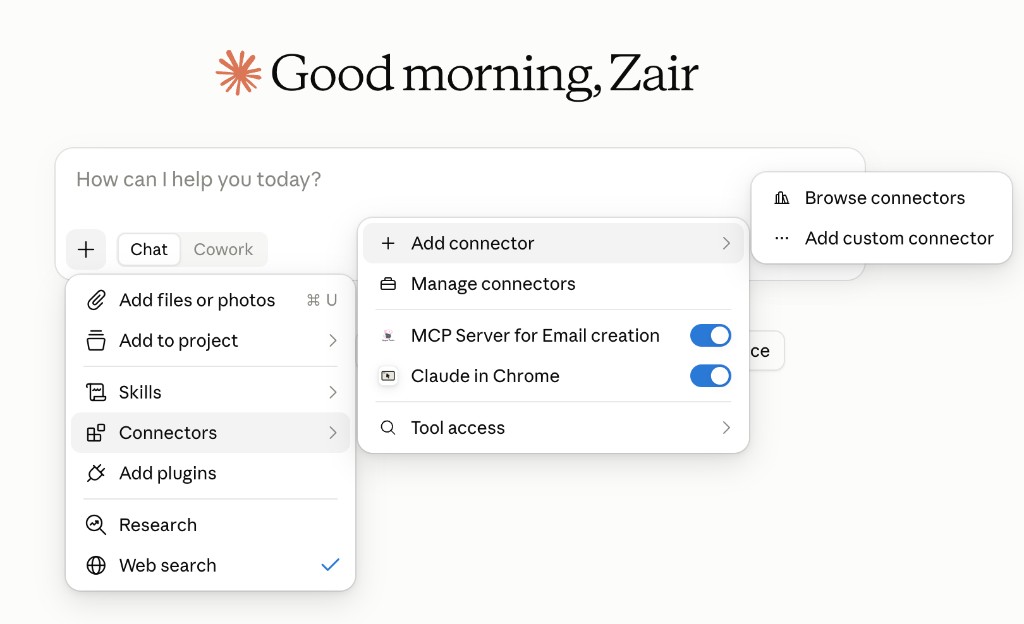
Once the connector exists, it appears in this list with a toggle. In the
screenshot, MCP Server for Email creation is already on.
- Enter a Name. This is the label in the connectors list, so use the same job name you used in MCP Studio.
- Paste the MCP server URL you copied from MCP Studio.
- Click Continue.
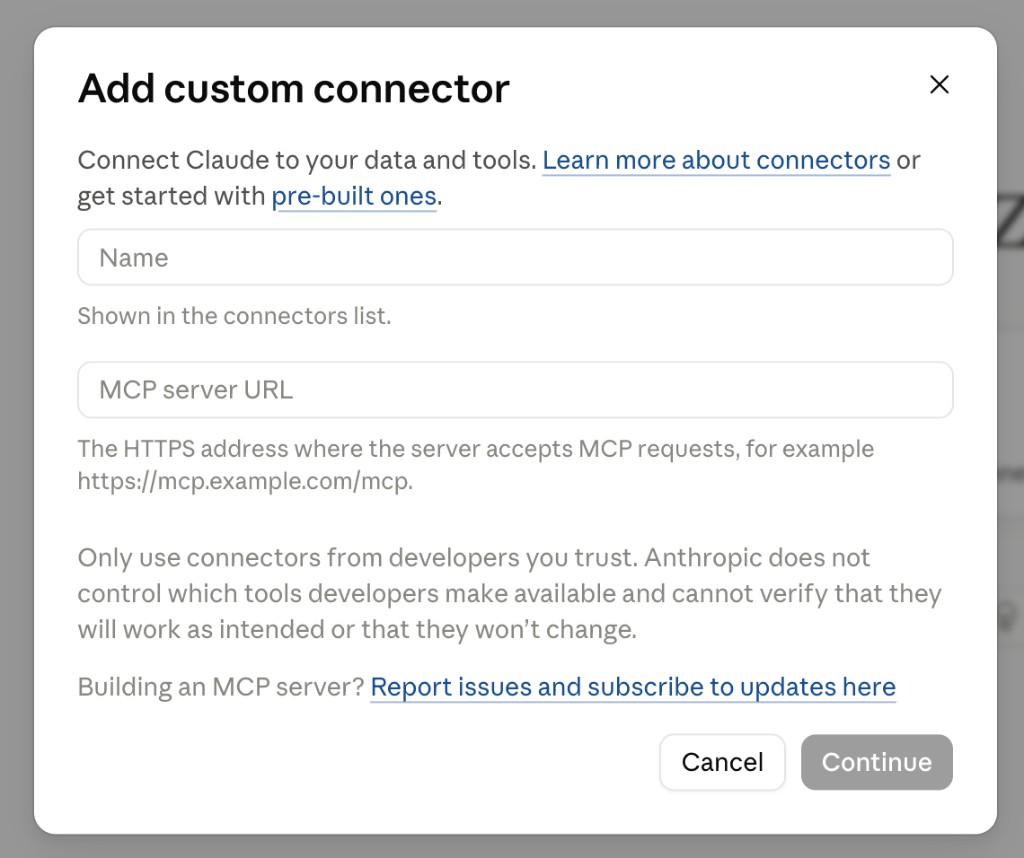
Paste the MCP Studio URL into MCP server URL, not the wizard page and not the dashboard. That field is the HTTPS address where the server accepts requests.
On a Team or Enterprise plan, an Owner adds the connector first. Everyone else clicks Connect on it afterward.
- Back in the chat, open Connectors and turn the toggle on for this conversation.
Check that it works
Ask something you know is in the source. Compare the specifics rather than the conclusion: a color name, a refund window, a sentence from the brand kit. Each passage links back to the page it came from, so open one and read around it.
A useful first prompt is the one from the walkthrough:
Create a welcome email for new customers. Use the resources connected to this server for context.
Confirm Claude called the connector. Most chats show a tool call or connector activity beside the reply. That is the difference between an answer drawn from your content and one drawn from general knowledge.
Then ask something the source does not cover. When nothing in your content is a real match, the server says so before it says anything else.
You: What is our incident escalation policy?
Assistant: Nothing in this server's content covers incident escalation. The closest material is the welcome email template, which is a different subject. You would need to add that document as a source.
Two known answers and one deliberate miss tell you the connector is doing its job.
If the reply is not what you expected
Change one thing, then ask the same question again. Rephrase it in the wording the source itself uses. Add the source that holds the answer when the question was never covered. Check that the toggle is on for this chat, and that indexing has finished on the dashboard.
A Free Claude plan holds one custom connector. MCP Studio's free tier covers a first server.
Only add connectors from developers you trust. Anthropic does not verify third-party tools. An MCP Studio server you create yourself is yours.
Create your first Claude custom connector today
Create your first Claude custom connector today. Open MCP Studio, deploy a server from one source, and paste the URL into Claude. The wizard is about a minute. The first question you already know the answer to tells you whether to keep it.